terminal espionage
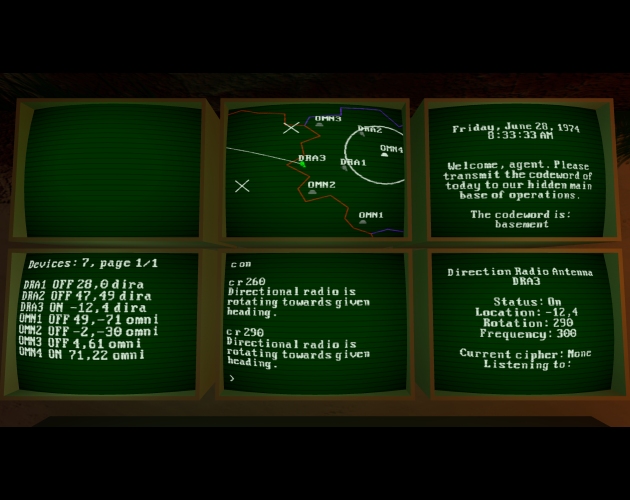
This is a puzzle game where you control various radio related devices via a terminal from the comfort of your fully enclosed bunker. Made in 48 hours for Ludum Dare 59
It has a steep learning curve and doesn't give enough feedback on your actions. Which would be somewhat ok, but it's also buggy, so that doesn't help when figuring out if you made a mistake or not. If you're stuck, feel free to blame me, because it most likely is a bug you encountered.
You may need to click on the game before it captures your keyboard.
Make sure to enable text sniffing with "c text on" before broadcasting your messages to HQ and other locations!
There sadly is a bug in one of the puzzles. If you discover obscurity, use "lawless" on the questgiver instead and you will have finished the game. Sorry for the inconvenience!
Controls
Keyboard only! Type commands in the terminal to play the game! But you can use the mouse to look around if you hold rightclick.
If the screen effects bother you: use the following command
degauss
For the windows build, you can exit the game by typing quit or exit (or alt+f4 ofcourse)
How to play
This game is complex. The controls are convoluted and the devices are weird. There's an ingame tutorial but it's mediocre. I know. So, here's the first few actions that you can do and a few of the commands you can use for that:
Step 1: Use an omniradar and look for interesting frequencies.
In order to do that, you must connect to one and give it commands. So, let's select and connect to one first:
devices select omn1
or shortened: d s omn1
You will notice that a new screen pops up in the bottom right. This is the status of the selected omniradar. Notice that it's turned off. Turn it on!
control on
or shortened: c on
If you want to give a command to a device you haven't currently selected, you can also do that! Simply add the device identifier between control and the action:
control dra1 on
or shortened: c dra1 on
Depending on which omniradar you've enabled, you may notice certain frequencies have a higher result. If you selected omniradar 1, you'll notice that 600 and 690 are bigger than the rest. Let's investigate!
control freq 600
or shortened: c f 600
If the signal is strong enough, it'll show an estimated distance. Not very useful on its own, but you can triangulate its position if you do this with multiple omniradars. But before we do that, it'll be tough to figure out its coordinates in your head. So, let's draw on the map!
draw circle 49 -71 59
or shortened: draw c 49 -71 59
The draw command can draw circles, lines or crosses (and clear them). For circles, the first two parameters are the x and y coordinate. In this case, we'll use the location of our omniradar. The third parameter is the radius, which in this case is the distance reported by the omniradar. Note that the radius has to be a whole number, you can't use decimals.
Now that we've drawn the circle, we can repeat this process with a different omniradar. Omniradars 2 and 4 make good candidates, since they're relative close to the circle. Try again with those two until you're confident that you know where the secret base is located.
Once you think you've found the intersection, it's time to listen in! Directional radio arrays allow you to point it in a direction and see any embedded text messages within the signal. First, select one:
devices select dra1
or shortened: d s dra1
Next, turn it on, set the frequency to 600, and tell it to listen to text messages.
control on
control freq 600
control text on
shortened: c f 600
You'll notice that there's a white line pointing north from the selected dira. This is its direction. Use the rotate command to rotate it towards the suspected location of the secret base. The direction is represented in 360 degrees, with 0 being north, 90 being east, 180 being south and 270 being west. For instance, to point it northeast, use the rotate command like this:
control rotate 45
or shortened: c r 45
It will rotate towards the direction of your choice. Try to point it towards the suspected location of the headquarters. If you've enabled the dira, enabled text snooping and set the frequency to the correct value, it'll automatically show any captured data in the top left window. Once you see that, you're ready for the next step: Sending messages back.
Directional radio arrays can transmit messages back to the source. Since we are tasked with communicating with HQ using our secret codeword, let's use the transmit command:
control transmit basement
or shortened: c t basement
You'll notice a different message injected inbetween the regular message from HQ, with your next instructions.
There are three more things you should know. First: Some messages may be encrypted, and sometimes you may need to send an encoded message. For this, we can add a cipher to our dira. If we want a Caesar's cipher with 13 as the key (aka rot13), use the following command:
control cipher set caesar 13
If you want to remove it:
control cipher remove
Ciphers will apply to incoming and outgoing messages. If something looks wrong or a transmitted message doesn't seem to work, check for ciphers
Second: You can clear custom drawings from the map:
everything: draw clear
only circles: draw clear circles
only lines: draw clear lines
only crosses: draw clear crosses
Helpful if you've drawn too many things.
Third: There's a leaderboard :D Very useful and fun. I hope.
You can view it and add your own current score with the following commands
leaderboard list
leaderboard submit yourname
That's it! There are more commands but these are the essentials. Use the help command to view more details about most of the stuff you can do. Good luck playing through the game!
Download
Leave a comment
Log in with itch.io to leave a comment.